
How to Do a Reverse Image Search
The complete guide to tracing image origins, verifying authenticity, and finding high-resolution copies — using TinEye, Google Lens, Yandex, and Bing.
What is Reverse Image Search?
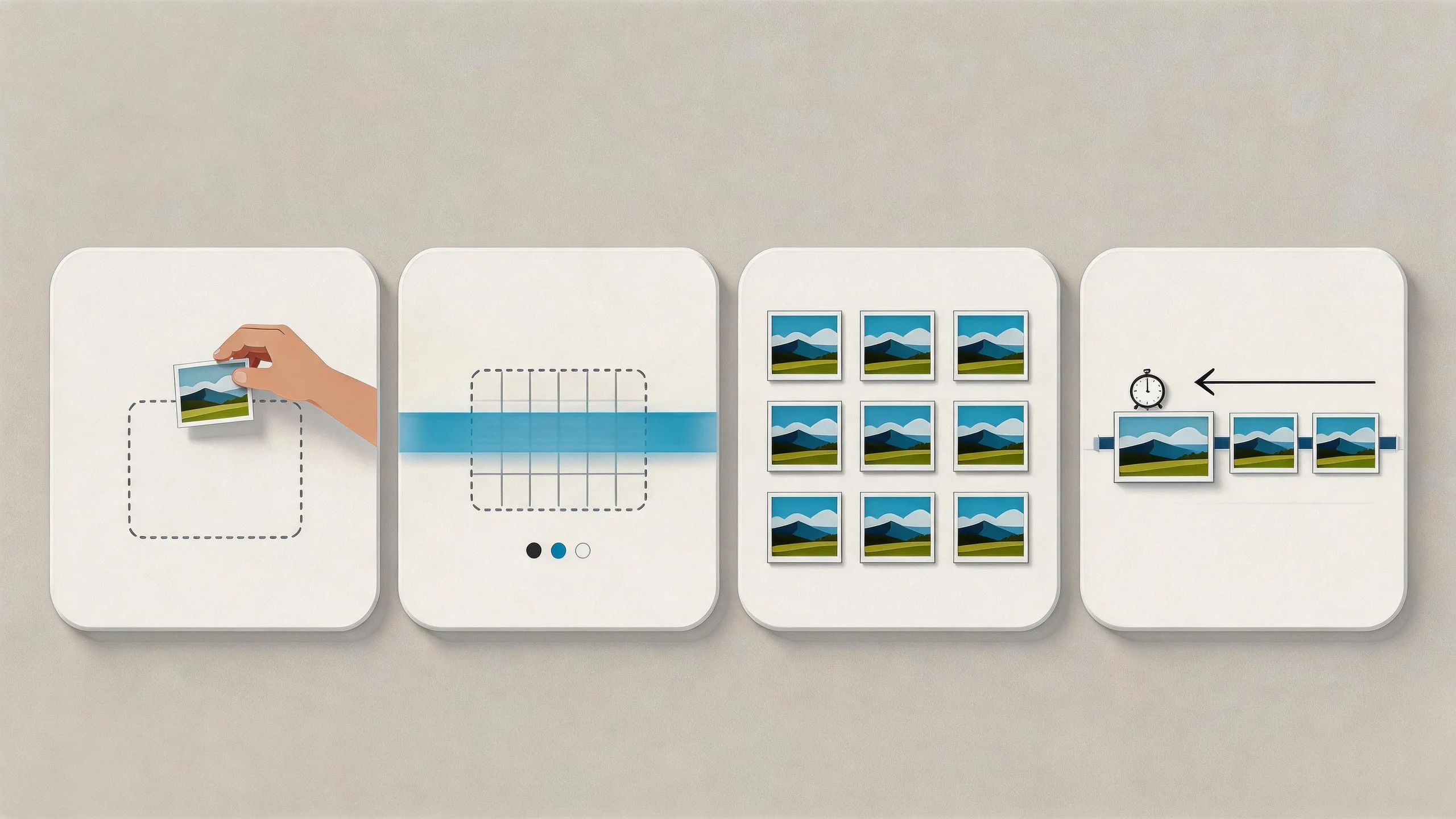
Reverse image search is a technique where you use an image file or URL as your query instead of text. The engine analyzes the pixels, colors, textures, and patterns to find where that image exists elsewhere online — or identifies what is inside it.
It is the go-to technique for fact-checkers, journalists, designers, and anyone who needs to know where an image came from or who created it.
Engine Comparison: Google Lens vs. TinEye vs. Yandex vs. Bing
Each engine uses a different algorithm and indexes the web differently. You need the right tool for each goal.
Google Lens
Object & product identification
Best for: Identifying products, landmarks, and objects
Limitation: Poor at finding the oldest/original source
TinEye
Source tracing & copyright
Best for: Finding where an image first appeared online
Limitation: Fails if image is cropped too heavily
Yandex Images
Aggressive matching for obscure sources
Best for: When Google and TinEye both fail
Limitation: Interface and index are Eastern-European-biased
Bing Visual Search
Shopping-optimized visual engine
Best for: Finding individual products in a scene
Limitation: Smaller index than Google
The Source Tracing Ladder
When one engine fails, move to the next. This is the proven escalation path from quickest to most thorough:
Step 1
TinEye (Sort: Oldest)
Step 2
Google Lens (Find Image Source)
Step 3
Yandex Images (International)
Step 4
Context Clues (Visible text & logos)
Step-by-Step Reverse Search Workflow
Crop the image
Remove all background noise. Crop tightly to the subject you actually want to search. The engine won't guess.
💡 If you're searching for a lamp in a room photo, crop so only the lamp is visible.
Start with TinEye
Upload to TinEye.com for exact duplicate matching. After results load, sort by 'Oldest'.
💡 The oldest result is almost always closest to the original source.
Run through Google Lens
Upload the same image to Google Lens and click 'Find image source'. Look for authoritative domains in the results.
Try Yandex as fallback
If both TinEye and Google fail, upload to Yandex Images. It finds sources in Eastern European networks and obscure blogs that others miss.
Use visible clues as keywords
Look for watermarks, brand names, or text visible in the image. Run those as text queries in Google — often faster than any visual tool.
Compare and verify dates
Across all results, check the publication dates. The earliest date is your strongest lead for the original source.
Advanced Tips for Better Results
- Crop aggressively: Upload only the subject. A cluttered scene confuses the AI about what you're looking for.
- Check image dimensions: Among duplicate results, the highest-resolution version is usually closest to the original.
- Use visible text first: A watermark or sign in the image searched as plain text is often faster than reverse image searching the whole photo.
- Look for EXIF data: If you have the original file, use an EXIF viewer tool to extract the camera, location, and copyright field.
Query Templates for Context Searches
Find original photographer
"[image topic]" photographer site:500px.com OR site:flickr.comSearch portfolio sites for the creator
Find news context
"[image topic]" -site:pinterest.com "original source" OR "credit"Remove Pinterest noise and find attribution
Find high-resolution version
"[image name]" imagesize:3000x2000Force Google Images to return large versions
Debunk misattributed image
"[image topic]" "fact check" OR "debunked" OR "misleading"Find fact-checker write-ups